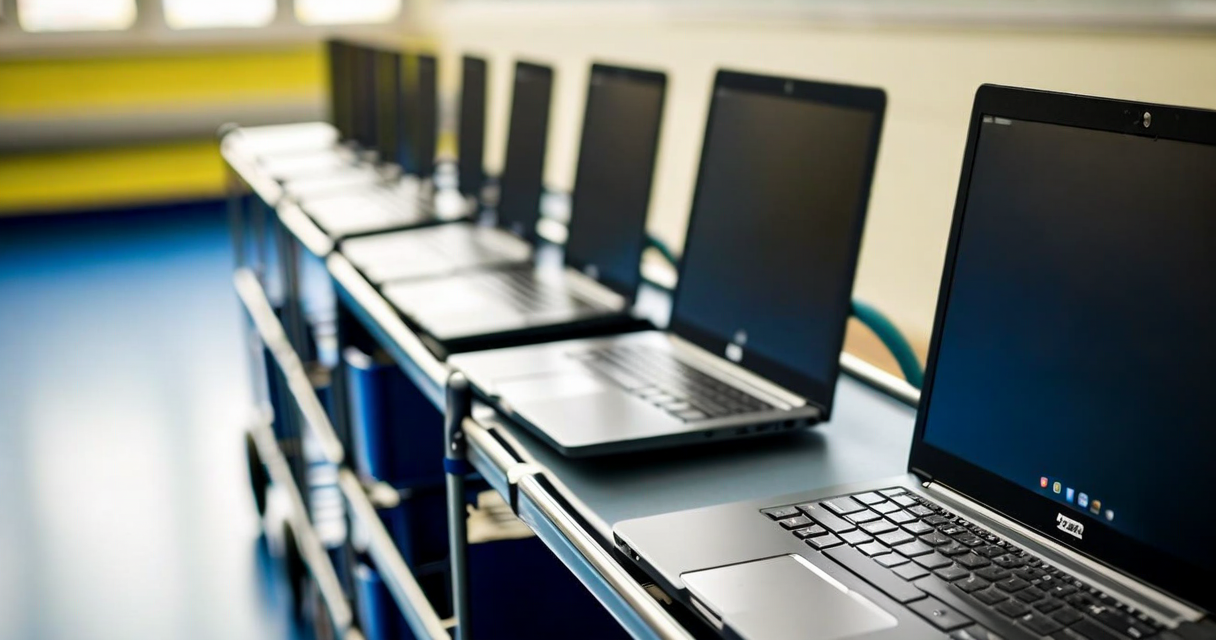
According to the Department for Education's 2023 Technology in Schools survey, 68% of state primary schools in England now primarily use Chromebooks for student-facing digital work. That number has grown from 41% in 2019. Chromebooks are not going away.
Building a web-based maths platform that works on Chromebooks sounds simple — they run Chrome, after all. In practice, school Chromebooks are a specific hardware and management environment that exposes failure modes you'd never encounter testing on a developer's MacBook or a home laptop. This post is our honest account of what we got wrong and how we fixed it.
The Hardware Reality: Budget Chromebooks Are Not Development Machines
The Chromebooks most UK primary schools deploy are budget devices: typically the Lenovo 100e Chromebook (about £150 retail) or the ASUS Chromebook C204 (about £170). Both have 4GB of RAM, MediaTek or Intel Celeron processors, and eMMC storage. They run Chrome OS, but the available CPU and memory resources after the OS overhead are significantly less than a modern consumer laptop.
We discovered our first significant problem during a January 2024 pilot session at a school in Lewisham. A class of 27 Year 3 students all logged in simultaneously. The session loading time on the teacher's test machine was 1.8 seconds. On the actual classroom Chromebooks, it averaged 6.4 seconds per student. Three students got a white screen and had to reload.
The cause was our use of a heavy CSS animation library (Animate.css v4.1.1) for the question-answer feedback transitions. It was fine on modern hardware. On a Celeron with 512MB of available RAM after OS and browser overhead, it caused consistent frame-rate drops that occasionally triggered Chrome's memory pressure shutdown of the tab.
CSS Animations: The Silent Performance Killer
CSS animations that use transform and opacity are GPU-accelerated and generally fine. CSS animations that animate properties like width, height, margin, or padding trigger layout recalculation on every frame — expensive on any device, catastrophic on a budget Chromebook with a slow GPU.
Our feedback animation was originally: a correct answer would make the answer box expand slightly (width: 100% → 105%) and turn green. The expansion was the problem. We rewrote it to use transform: scale(1.03) instead — same visual effect, no layout recalculation. The Lewisham school's average session load time dropped from 6.4 seconds to 2.1 seconds after this change.
The lesson: anything you animate should use transform or opacity only. If you can't achieve the effect with those two properties, you need to rethink the interaction design rather than reach for a different property.
Managed Chrome OS: The Difference Between Chrome and School Chrome
School Chromebooks run under a Google Workspace for Education administrator. This means several things that don't apply to consumer Chrome:
First, extensions can be force-installed by the admin. We've seen schools with 8–12 extensions running in every browser session, including web content filters (Securly, GoGuardian), accessibility tools, and management agents. Each extension increases browser memory overhead. On a 4GB Chromebook, an 8-extension managed Chrome profile can have less than 600MB available for a web application tab.
Second, Chrome's background tab throttling is more aggressive in managed environments because Google Workspace admins can configure it directly. If a student minimises the browser window, JavaScript timers may fire at 1-second intervals instead of the default 1Hz, which can cause our session timer to drift significantly.
Third, policy-managed Chrome OS typically runs a version that is 2–3 releases behind the current stable channel, because admins test updates before deploying them. In 2024, we had schools running Chrome 118 when the stable channel was at 122. We cannot assume access to APIs or features introduced in recent Chrome releases.
Offline Behaviour and Network Dropouts
School Wi-Fi is not home Wi-Fi. A single access point serving 30 simultaneously connected Chromebooks during a lesson is a normal scenario, and network conditions are highly variable. We had a Hackney school report that 10–15% of question submissions were timing out during a class session — the student would answer a question, wait, and the platform would reload them to the same question because the POST request had dropped.
Our initial architecture submitted each answer as a synchronous HTTP request. We rewrote the submission logic to use the Beacon API for non-critical data and a write-ahead local queue (using localStorage) for answer submissions. The local queue means a student's answer is recorded in the browser immediately, then synced to the server when connectivity allows. The student never sees a wait spinner or a timeout error.
This changed the failure mode from "student loses their answer" to "answer syncs 30 seconds late." Teachers never see the delay. Students never notice it. The effective submission failure rate dropped from ~12% to ~0.3%.
Screen Size and Touch Input
The Lenovo 100e has an 11.6-inch display at 1366×768. It also has a touchscreen. In a primary school setting, about 40% of students will use the touchscreen at least part of the time rather than the trackpad — particularly younger students in Year 1 and Year 2.
Our original answer input was a text field where students typed their answer. This required activating the on-screen keyboard, which on a managed Chromebook takes 1.5–2 seconds to appear and covers the bottom third of the screen — often obscuring the question the student is trying to answer.
We added a tap-to-answer interface for single and two-digit numeric answers — a grid of number buttons that submits on tap, no keyboard required. The text input is still available for longer answers, but 90% of primary maths fact practice involves answers between 0 and 144, which the tap grid handles completely. Teacher feedback on this change was uniformly positive.
Printing and the Paper-Based Fallback
One thing we underestimated: teachers want to be able to print student progress reports. This is not a backup scenario — several schools specifically asked for it as a core requirement so they could include progress data in parent consultations and pupil progress meetings without being tethered to a screen.
Chrome's print-to-PDF works on Chromebooks, but only if the page has a proper @media print stylesheet. Our initial reports were designed only for screen and printed as a mess of overlapping divs. We added a full print stylesheet that hides navigation, expands the content area to 100% width, uses black text on white throughout, and places page breaks before each student's data block.
The print stylesheet took about four hours to write properly. It was some of the highest-leverage work we did in Q4 2024 — several schools mentioned it specifically as a reason they renewed.
Testing Protocol for Chromebook Compatibility
We now run every significant platform update through a Chromebook-specific test matrix before release. The matrix includes:
Three physical Chromebook models (Lenovo 100e, ASUS C204, HP Chromebook 11a) — all budget devices running managed Chrome OS. A simulated low-bandwidth network environment using Chrome's Network Throttling set to "Slow 3G" — which approximates a congested school Wi-Fi environment. A 30-concurrent-session load test using headless Chrome instances on the same local network. Every new animation or transition checked manually against the "transform/opacity only" rule before it reaches code review.
This sounds labour-intensive, and it is. But the cost of a failed session during a class lesson — where a teacher has 27 students, a limited window, and no IT support in the room — is much higher than the cost of a thorough test. Primary teachers have limited patience for software that doesn't work in their specific environment, and they talk to each other constantly. One bad experience spreads fast.
The Broader Point About Ed-Tech and Real Classrooms
Most ed-tech products are built and tested on developer hardware in offices. The hardware assumptions that feel natural in that context — fast CPUs, abundant memory, reliable broadband, modern browser versions — are wrong for the majority of UK primary school environments.
Building for the actual deployment environment is not optional. It's the job. If your platform works beautifully on a MacBook Pro and crashes on the 100e Chromebook that 68% of your users are running, you don't have a working product. You have a demo.
We've made every mistake described in this article ourselves. The fixes exist. The main thing required is testing on the actual hardware that actual students use, not on the hardware you have at your desk.